Showing posts with label opera. Show all posts

Monday, January 21, 2013

Syncing Opera

Opera on first run.

Almost everyone owns multiple devices today: phones, tablets and computers all have their specific purposes. And we all use the Internet for almost everything. Which makes it nice for us to be able to sync our bookmarks, history, notes and whatnot. Chrome, Firefox, Opera and most other browsers offer methods of syncing all your devices. I will go through syncing my Joli computer with my other computers. I customize my browser allot. I need my search engines synced.
Go to the computer which has the customized opera. Click on the Opera logo in the upper left corner and select "Synchronize Opera," then "enable synchronization". Log into My Opera or creat an account. Next, you need to do the same thing in the Opera browser you just installed. Click "I already Have an account and log in. Then you will see a screen asking you what you want to sync. Check everything you wish to be synced between your different browsers, and click "finish." Your web browsing experience will be the same on all devices. Unfortunately, Opera does not sync themes or extensions, so you will have to do that manually. However, Opera Link is very handy.

Wednesday, December 26, 2012

Displaying webpages with iFrames

Iframes were once popular to hide content from the Search Spiders, a form of Blackhat SEO. Now that these spiders can see through iframes, I don't recommend using them for that purpose; it could get your site banned. However, they can be useful for displaying other sites in your webpages for various purposed. The basic code is:
<iframe src="URL" width="200" height="200">
 Sorry, there was a problem loading this site. Maybe we typed the URL wrong or you can get a new browser <a href="http://www.opera.com">Here</a></iframe>

This iframe displayed fireburst.webs.com in a width and height of 500. It was simple to create. iFrames can be very useful for a webmaster, as long as you don't use them for hiding content.

Tuesday, November 20, 2012

Embed RSS feeds into a webpage

In websites such as Fireburst News,  you will see RSS feeds embedded into the webpage. Also, you may want to display your RSS feed in your site's homepage. To make an RSS file, visit this post. Here's the code to embed my blog's RSS:
<script src="http://gmodules.com/ig/ifr?url=http://sethsdiscoveries.blogspot.com/feeds/posts/default&amp;synd=open&amp;w=320&amp;h=200&amp;title=&amp;border=%23ffffff%7C3px%2C1px+solid+%23999999&amp;output=js"></script>

Thursday, November 15, 2012

Make a webpage RSS feed

Most news sites have things called RSS feeds that you subscribe to and get updates using a feed-reader. It's actually easy to make an RSS feed, using basic XML. This code goes into notepad. Update whenever you have a new post you want to display in the feed
<?xml version="1.0" encoding="ISO-8859-1" ?>
<rss version="2.0">
<channel>
<title>New Feed One</title>
<link>http://site.com/newfeedone</link>
 <description>Start text on articles</description>
<item>
<title>New Post Two</title>
<link>http://site.com/newposttwo</link>
<description>New post on New Post Two</description>
</item>
<item>
<title>New Post Three</title>
<link>http://www.site.com/newpostthree</link>
<description>description</description>
</item>
</channel>
</rss>

Save as "feed.xml" but you can change anything except .xml.

Add categories with this code:
<category>Web development</category>

Monday, October 29, 2012

Make Google Custom Search results open in same tab

One of the problems I had with GCSE on my blog was that it always opened links in a new window or tab. This wasn't very convenient, but I only had to change a little code in the results code. 
Before Modification:

<!-- Put the following javascript before the closing </head> tag. -->
<script>
(function() {
var cx = '010940491106818468665:ak7ru-numse';
var gcse = document.createElement('script'); gcse.type = 'text/javascript'; gcse.async = true;
gcse.src = (document.location.protocol == 'https:' ? 'https:' : 'http:') +
  '//' + cx;
var s = document.getElementsByTagName('script')[0]; s.parentNode.insertBefore(gcse, s);
})();
</script>

<!-- Place this tag where you want the search results to render -->
<gcse:searchresults-only></gcse:searchresults-only>


After Modification (when the results open in same tab):

<!-- Put the following javascript before the closing </head> tag. -->
<script>
(function() {
var cx = '010940491106818468665:ak7ru-numse';
var gcse = document.createElement('script'); gcse.type = 'text/javascript'; gcse.async = true;
gcse.src = (document.location.protocol == 'https:' ? 'https:' : 'http:') +
'//' + cx;
var s = document.getElementsByTagName('script')[0]; s.parentNode.insertBefore(gcse, s);
})();
</script>

<!-- Place this tag where you want the search results to render -->
<gcse:searchresults-only linktarget="_parent"></gcse:searchresults-only>


I replaced  <gcse:searchresults-only> with  <gcse:searchresults-only linktarget="_parent">

Sunday, October 28, 2012

Site Title, Description & Tags in HTML

The title, description and tags are viable to SEO. Search engines use these to help match your site with searches. Most site builders offer completely customized title, description and tags but you need to add these manually in HTML, PHP, and other manually edited documents. The code is inserted into the <head> and </head> tags:
<TITLE>My Site's Title</TITLE> 

<meta name="keywords" content="Separate keywords with commas.">
<meta name="description" content="My site's description, two or three sentences.">

<meta name="author" content="Your Name">
A well formed head tag will follow this format:
<head>
<TITLE>My Site's Title</TITLE> 

<meta name="keywords" content="Separate keywords with commas.">
<meta name="description" content="My site's description, two or three sentences.">
<link rel="stylesheet" type="text/css" href="stylesheet.css" />

<meta http-equiv="refresh" content="100">
<link rel="Shortcut Icon" href="/favicon.ico">  
</head>
For more <head> tags see all posts with the label head. You may omit the meta tags about keyword and description. You may omit any of these <head> tags. 

Two page, more customizable GCSE for Blogger

Google Custom Search is a powerful tool to search websites. You can get a Blog search from the layout and gadgets section of Blogger.The downside of this is that it isn't that customizable. This will show you how to add your own GCSE to Blogger and have a separate page for results. It's simple.
Log into Blogger, and select "pages" of the blog you want to add search too. Make sure its set to "don't show pages." Then create a new page and name it "search" or "search results."  When the editor comes up click publish and go back to page list. Click "view" and copy the URL. The page section should look like the image at left. Go to Google Custom Search and click "make new search engine."

In "name" enter any thing, and in "sites" enter the URL of your blog. Make sure you select the free option and that you agree to the terms of use. Click next, choose a style, which you can customize. Then click next. DO NOT COPY THE CODE. Go to the sites tab and exclude the URL of your search results page.

Then go to "look and feel" and select the "two page" option. 
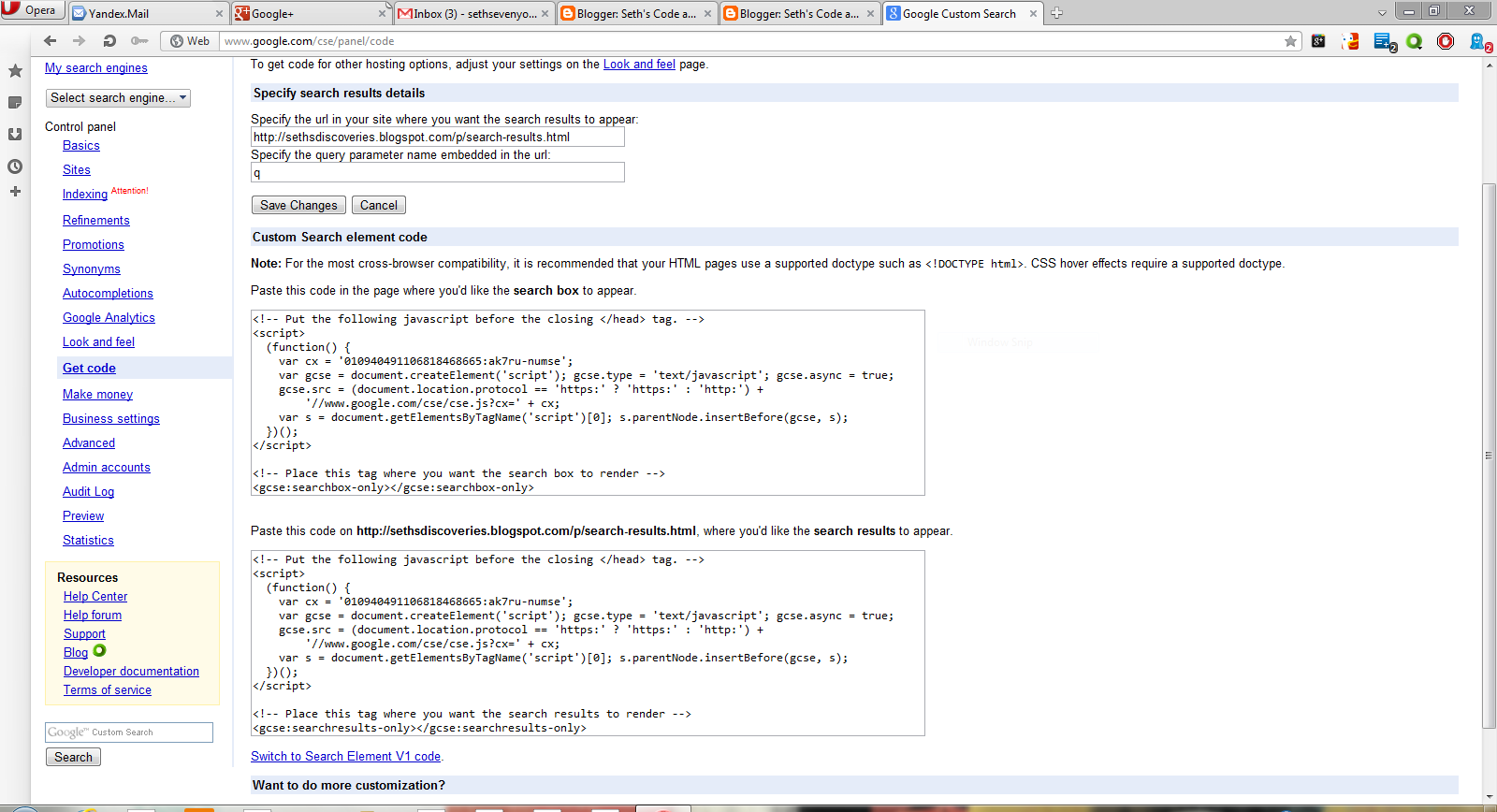
Then click "save and get code." In the box where it tells you to specify the URL where the search results are to appear, enter the URL of "search" or "search results."

Copy the code. Go to blogger, then go to "pages" of the blog you are adding search to, and click edit. When you get the code you will have to remove some of it for cross browser compatibility so it will work with Firefox and Opera. This is the search results code. The text highlighted in red you must remove:
<!-- Put the following javascript before the closing </head> tag. -->
<script>
(function() {
  var cx = 'Your Search Engines ID:ak7ru-numse';
var gcse = document.createElement('script'); gcse.type = 'text/javascript'; gcse.async = true;
gcse.src = (document.location.protocol == 'https:' ? 'https:' : 'http:') +
'//www.google.com/cse/cse.js?cx=' + cx;
var s = document.getElementsByTagName('script')[0]; s.parentNode.insertBefore(gcse, s);
})();
</script>

<!-- Place this tag where you want the search results to render -->
<gcse:searchresults-only></gcse:searchresults-only>
CLick HTML in the post editor and paste the code there. It should look like this: 

Click save. Now go to layout, and click "add gadget." Paste the code for the  search box there, click save and you're set!

Thursday, October 25, 2012

Links, Part 1: The basic link

Links are an almost irremovable part of a site or even a page. Links are used to lead to other pages, other sites, even emails.  Fortunately, links are very easy. In this post I will go over the hyperlink, the email link and the image link. The basic link code is <a href="http://sethstutorials.blogspot.com">Seth's Code & PC Tutorials</a> Replace with http://sethstutorials.blogspot.com  with the address of the site you want to link to. Replace Seth's Code & PC Tutorials with the text you want your links to display.

Email Link

The email link is simple. The code is:
<a href="mailto:sethsevenyoln@aol.com">Email Me</a>
Replace sethsevenyoln@aol.com with your email address, and Email Me with the text you want displayed.
Image Link

The image link is a bit more complicated. Still, its quite possible. The code is:
<a href="http://fireburst.webs.com"><img src="image.gif" border="0"></a>

Replace http://fireburst.webs.com with the URL of the site you want to link to, and image.gif with the URL of the image you want displayed. 

Opening a link in a new tab

If you want a link to be opened in a new tab, for the basic link use this code:


<a href="http://url" target="_blank">link text</a>


HTML Video: Part 2


already wrote a post on HTML5 video. This expands on it and explains things like auto play. 
Master Code + controls = auto play, loop

To add loop, auto play and "poster" or image that's shown when the video first loads, use this code:
<video poster="thumbnail.png" autoplay loop controls tabindex="0">
  <source src="vide.webm" type="video/webm"; codecs="vp8, vorbis" />
  <source src="video.mp4" type="video/mp4"; codecs="theora, vorbis" />
</video>

Replace thumbnail.png with the URL of the pic you want to display when the video is first loaded, video.webm with the URL of the webm version of your video, video.mp4 with the URL of the mp4 version of your video. The autoplay and loop controls set what they sound like: autoplay making the video play upon loading and loop making the video repeat. More on HTML5 video is available at my former post.


Desktop

FeatureChromeFirefox (Gecko)Internet ExplorerOperaSafari
HTML5 video20.012.09.012.05.1

Monday, September 24, 2012

Make Opera Compatable with any site

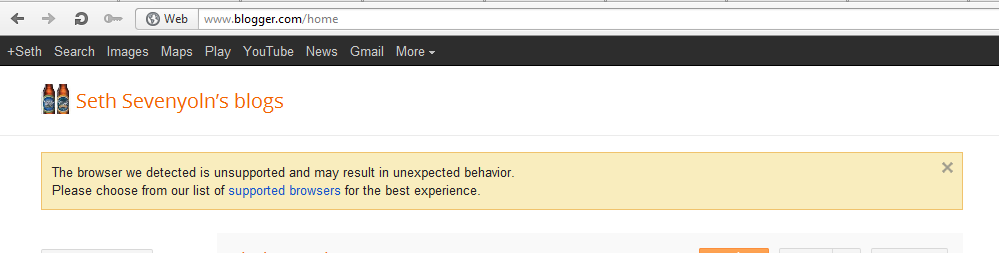
Sometimes, sites say that your Opera is not compatible. This means that you cannot use Opera to access that site. However, Opera offers a nifty way to get around this, for most sites support Opera 12 and up, even if they don't know it. And, with many Google services, you will see something like this:


So you right click on the site and it will display a menu. The second option from the bottom should be "edit site preferences". Click this and you should see something like this: 


Click on "Network" and something like this should come up:


Click on the drop down menu where it says "identify as Opera and select Mask as Firefox. When you are finished you will see this: 


Click "OK" and refresh the page. Do this to any page that says it is not compatible with Opera.