Showing posts with label engagement. Show all posts

Sunday, January 20, 2013

Facebook Like Boxes

Did you know that you can show who liked you on Facebook with a simple widget called the "like box?" Unfortunately, this is only available for Facebook Pages, which really sucks. All you need to do is enter some data at http://developers.facebook.com/docs/reference/plugins/like-box/ and click get code. Make sure the FB Javascript SDK is included:

<div id="fb-root"></div>
<script>(function(d, s, id) {
  var js, fjs = d.getElementsByTagName(s)[0];
  if (d.getElementById(id)) return;
  js = d.createElement(s); js.id = id;
  js.src = "//connect.facebook.net/en_US/all.js#xfbml=1";
  fjs.parentNode.insertBefore(js, fjs);
}(document, 'script', 'facebook-jssdk'));</script>
Then you have the code they generated for you:
<div class="fb-like-box" data-href="http://www.facebook.com/pages/Fireburst/269394286467409?ref=hl" data-width="292" data-show-faces="true" data-stream="true" data-header="true"></div>

Sunday, January 6, 2013

How to display reccomendations via Facebook

One of the easiest ways to get users to visit another page on your site is to recommend pages they will like. One of the easiest ways is to display a Recommendations box with Facebook. But, to add like buttons to other hosts is easy.
To add the recommendations box to your site, navigate to developers.facebook.com/docs/reference/plugins/recommendations/ and fill in the  box. You can customize it easily. Put the Facebook Javascript SDK in your <head> tags;
<div id="fb-root"></div>
<script>(function(d, s, id) {
var js, fjs = d.getElementsByTagName(s)[0];
if (d.getElementById(id)) return;
js = d.createElement(s); js.id = id;
js.src = "//connect.facebook.net/en_US/all.js#xfbml=1";
fjs.parentNode.insertBefore(js, fjs);
}(document, 'script', 'facebook-jssdk'));</script>

Then paste the box code into the place where you want it to appear: 

<div class="fb-recommendations" data-site="http://sethsdiscoveries.blogspot.com" data-width="300" data-height="300" data-header="false" data-font="trebuchet ms"></div>

Monday, December 31, 2012

Add Comments to your site using Facebook

Comments are used on blog posts and websites all over the web. They can be very useful for getting feedback from users. One of the most popular and easiest ways is by using Facebook for your commenting. First, navigate to http://developers.facebook.com/docs/reference/plugins/comments/ and enter the URL of the page you wish the comments to appear on. There are some basic customization options. Click "Get Code" and you will see two boxes of
code. The first you should copy and paste right after the <body> tag of your webpage. I got this code:
<div id="fb-root"></div>
<script>(function(d, s, id) {
var js, fjs = d.getElementsByTagName(s)[0];
if (d.getElementById(id)) return;
js = d.createElement(s); js.id = id;
js.src = "//connect.facebook.net/en_US/all.js#xfbml=1";
fjs.parentNode.insertBefore(js, fjs);
}(document, 'script', 'facebook-jssdk'));</script>

The other code is pasted where you want the comment box and comments to appear. You can moderate these comments. To do so simply paste this code into the <head> of your page. <meta property="fb:admins" content="{YOUR_FACEBOOK_USER_ID}"/> As you can see, its really very simple. And its a wonderful and useful way of communication. Facebook might not be the best social network, but it certainly provides one of the best ways to add comments to a page. Google+ fans, you can't help but admit that this is a very useful thing.

Wednesday, December 26, 2012

Displaying webpages with iFrames

Iframes were once popular to hide content from the Search Spiders, a form of Blackhat SEO. Now that these spiders can see through iframes, I don't recommend using them for that purpose; it could get your site banned. However, they can be useful for displaying other sites in your webpages for various purposed. The basic code is:
<iframe src="URL" width="200" height="200">
 Sorry, there was a problem loading this site. Maybe we typed the URL wrong or you can get a new browser <a href="http://www.opera.com">Here</a></iframe>

This iframe displayed fireburst.webs.com in a width and height of 500. It was simple to create. iFrames can be very useful for a webmaster, as long as you don't use them for hiding content.

Tuesday, November 20, 2012

Embed RSS feeds into a webpage

In websites such as Fireburst News,  you will see RSS feeds embedded into the webpage. Also, you may want to display your RSS feed in your site's homepage. To make an RSS file, visit this post. Here's the code to embed my blog's RSS:
<script src="http://gmodules.com/ig/ifr?url=http://sethsdiscoveries.blogspot.com/feeds/posts/default&amp;synd=open&amp;w=320&amp;h=200&amp;title=&amp;border=%23ffffff%7C3px%2C1px+solid+%23999999&amp;output=js"></script>

Thursday, November 15, 2012

Make a webpage RSS feed

Most news sites have things called RSS feeds that you subscribe to and get updates using a feed-reader. It's actually easy to make an RSS feed, using basic XML. This code goes into notepad. Update whenever you have a new post you want to display in the feed
<?xml version="1.0" encoding="ISO-8859-1" ?>
<rss version="2.0">
<channel>
<title>New Feed One</title>
<link>http://site.com/newfeedone</link>
 <description>Start text on articles</description>
<item>
<title>New Post Two</title>
<link>http://site.com/newposttwo</link>
<description>New post on New Post Two</description>
</item>
<item>
<title>New Post Three</title>
<link>http://www.site.com/newpostthree</link>
<description>description</description>
</item>
</channel>
</rss>

Save as "feed.xml" but you can change anything except .xml.

Add categories with this code:
<category>Web development</category>

Tuesday, October 30, 2012

Special Symbols ¢, ™, ® and others

Trademark, copyright, and other symbols may be displayed in webpages by way of simple HTML code. Here they are:

®      &reg;
¢       &cent; 
™      &trade;
¿       &iquest;
©      &copy;
÷      &divide;
§       &sect;
¥       &yen;
£       &pound;
€       &euro;
µ       &micro;
¶       &para;
±       &plusmn;
·        &middot;

How to display this chart with the codes:
</span>® &nbsp; &nbsp; &nbsp;&amp;reg;<br />
¢ &nbsp; &nbsp; &nbsp; &amp;cent;&nbsp; <br />
™ &nbsp; &nbsp; &nbsp;&amp;trade;<br />
¿ &nbsp; &nbsp; &nbsp; &amp;iquest;<br />
© &nbsp; &nbsp; &nbsp;&amp;copy;<br />
÷ &nbsp; &nbsp; &nbsp;&amp;divide;<br />
§ &nbsp; &nbsp; &nbsp; &amp;sect;<br />
¥ &nbsp; &nbsp; &nbsp; &amp;yen;<br />
£ &nbsp; &nbsp; &nbsp; &amp;pound;<br />
€ &nbsp; &nbsp; &nbsp; &amp;euro;<br />
µ &nbsp; &nbsp; &nbsp; &amp;micro;<br />
¶ &nbsp; &nbsp; &nbsp; &amp;para;<br />
± &nbsp; &nbsp; &nbsp; &amp;plusmn; <br />
· &nbsp; &nbsp; &nbsp; &nbsp;&amp;middot;<br />
&nbsp; <br />

Sunday, October 28, 2012

Two page, more customizable GCSE for Blogger

Google Custom Search is a powerful tool to search websites. You can get a Blog search from the layout and gadgets section of Blogger.The downside of this is that it isn't that customizable. This will show you how to add your own GCSE to Blogger and have a separate page for results. It's simple.
Log into Blogger, and select "pages" of the blog you want to add search too. Make sure its set to "don't show pages." Then create a new page and name it "search" or "search results."  When the editor comes up click publish and go back to page list. Click "view" and copy the URL. The page section should look like the image at left. Go to Google Custom Search and click "make new search engine."

In "name" enter any thing, and in "sites" enter the URL of your blog. Make sure you select the free option and that you agree to the terms of use. Click next, choose a style, which you can customize. Then click next. DO NOT COPY THE CODE. Go to the sites tab and exclude the URL of your search results page.

Then go to "look and feel" and select the "two page" option. 
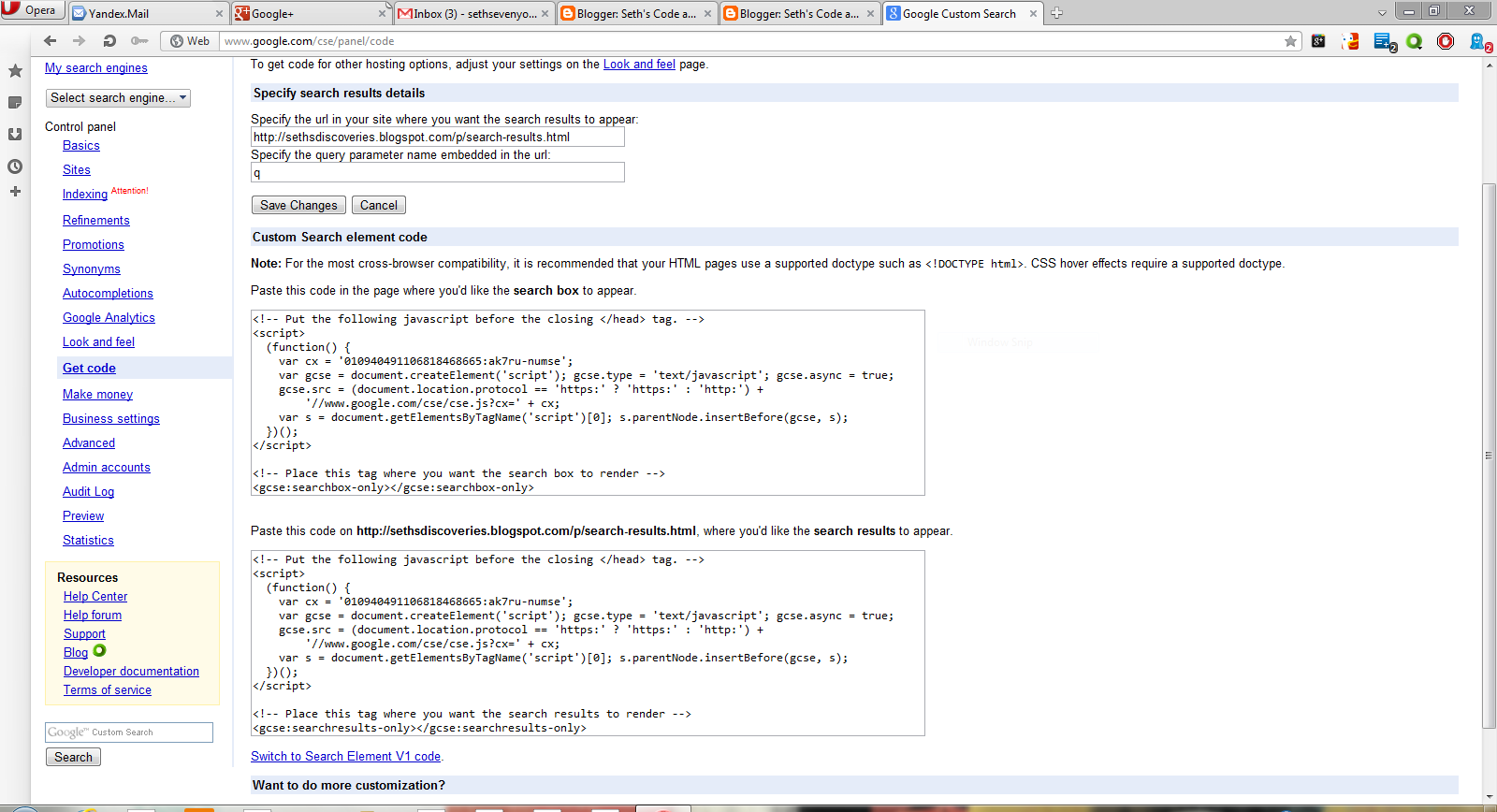
Then click "save and get code." In the box where it tells you to specify the URL where the search results are to appear, enter the URL of "search" or "search results."

Copy the code. Go to blogger, then go to "pages" of the blog you are adding search to, and click edit. When you get the code you will have to remove some of it for cross browser compatibility so it will work with Firefox and Opera. This is the search results code. The text highlighted in red you must remove:
<!-- Put the following javascript before the closing </head> tag. -->
<script>
(function() {
  var cx = 'Your Search Engines ID:ak7ru-numse';
var gcse = document.createElement('script'); gcse.type = 'text/javascript'; gcse.async = true;
gcse.src = (document.location.protocol == 'https:' ? 'https:' : 'http:') +
'//www.google.com/cse/cse.js?cx=' + cx;
var s = document.getElementsByTagName('script')[0]; s.parentNode.insertBefore(gcse, s);
})();
</script>

<!-- Place this tag where you want the search results to render -->
<gcse:searchresults-only></gcse:searchresults-only>
CLick HTML in the post editor and paste the code there. It should look like this: 

Click save. Now go to layout, and click "add gadget." Paste the code for the  search box there, click save and you're set!

Thursday, October 25, 2012

Links, Part 1: The basic link

Links are an almost irremovable part of a site or even a page. Links are used to lead to other pages, other sites, even emails.  Fortunately, links are very easy. In this post I will go over the hyperlink, the email link and the image link. The basic link code is <a href="http://sethstutorials.blogspot.com">Seth's Code & PC Tutorials</a> Replace with http://sethstutorials.blogspot.com  with the address of the site you want to link to. Replace Seth's Code & PC Tutorials with the text you want your links to display.

Email Link

The email link is simple. The code is:
<a href="mailto:sethsevenyoln@aol.com">Email Me</a>
Replace sethsevenyoln@aol.com with your email address, and Email Me with the text you want displayed.
Image Link

The image link is a bit more complicated. Still, its quite possible. The code is:
<a href="http://fireburst.webs.com"><img src="image.gif" border="0"></a>

Replace http://fireburst.webs.com with the URL of the site you want to link to, and image.gif with the URL of the image you want displayed. 

Opening a link in a new tab

If you want a link to be opened in a new tab, for the basic link use this code:


<a href="http://url" target="_blank">link text</a>


Wednesday, September 26, 2012

HTML text

Html is an old programming code used quite often in webpages. This post is to show you how to write rich text in HTML. HTML is supported by all browsers. This does not include color, however. 
1. Fonts
Fonts are the way the text looks. the most common fonts and their code are:
Times New Roman: <span style="font-family: Times, Times New Roman, serif;">
Arial: <span style="font-family: Arial, Helvetica, sans-serif;">
Verdana: <span style="font-family: Verdana, sans-serif;">
Helvectica: <span style="font-family: Helvetica Neue, Arial, Helvetica, sans-serif;">
Georgia: <span style="font-family: Georgia, Times New Roman, serif;">
Courier New:<span style="font-family: Courier New, Courier, monospace;">
Trebuchet: <span style="font-family: Trebuchet MS, sans-serif;">
When you want a font to end and display the browser's defaut font, use this closing tag: </span> You can get many more fonts and their codes at the Google Web Fonts Directory'
2. Size
So how do you get your font size to change? Simple. The size tags. They are <h1></h1> <h2></h2> <h3></h3> <h4></h4> <h5></h5> <h6></h6> 
<h1> is the largest, and I do not know how far the fine print goes down. </h1> is the closing tag. 
3. Effects
The italics tag is <i>, while the closing tag is </i> example: This is Italics.
The bold tag is <b> with the closing tag of </b>
The underline tag is <u> while the closing tag is </u>
The strike through tag  is <strike> while the closing tag is </strike>
The Subscript  tag is <sub> and the closing tag is </sub>
The Superscript tag is <sup> while the closing tag is </sup>
<marquee> makes the text roll.example </marquee> is the closing tag. example 
<blink> makes the text blink in Firefox. </blink> is the closing tag. 

Monday, September 24, 2012

How to creat your own free .tk domain

Domains are your name on the Internet. Domains cost money. Domains need all sorts of configurations. Domains are hard. So why not get a free hosted site at somewhere like webs.com, yola.com or sites.google.com? Yes but, yoursite.webs.com is not as professional sounding as yoursite.com or yoursite.tk. So here's how to creat your own .tk domain. 
Navigate to http://dot.tk. Go to "login to my .tk" .
Log in with the account you want. I'll use Google. Its an easy step by step registration. Select 12 months or what you want, set your domain to redirecting to your URL and you are set!